Customize how your community map looks and behaves. Choose a basemap style, configure display options, and set how your map appears when embedded on other websites.
-
Sign in and navigate to your community
Navigate to the community you want to customize. You must be the owner or a moderator of the community to change design settings.
-
Click the Manage button
The Manage button only appears if you are signed in and are the owner or moderator of the community.

-
Go to the Design section
Here you can customize your community's appearance with the following settings:
Choose your basemap design
A basemap is the background map layer that displays behind your places. Choose from three default styles:
- Simple: A clean, minimal map style
- Aquarelle: A watercolor-inspired artistic style
- Color: A vibrant, colorful map style
You can also use a custom basemap URL. We recommend MapTiler for creating custom basemaps. Contact us if you need help setting up a custom basemap.
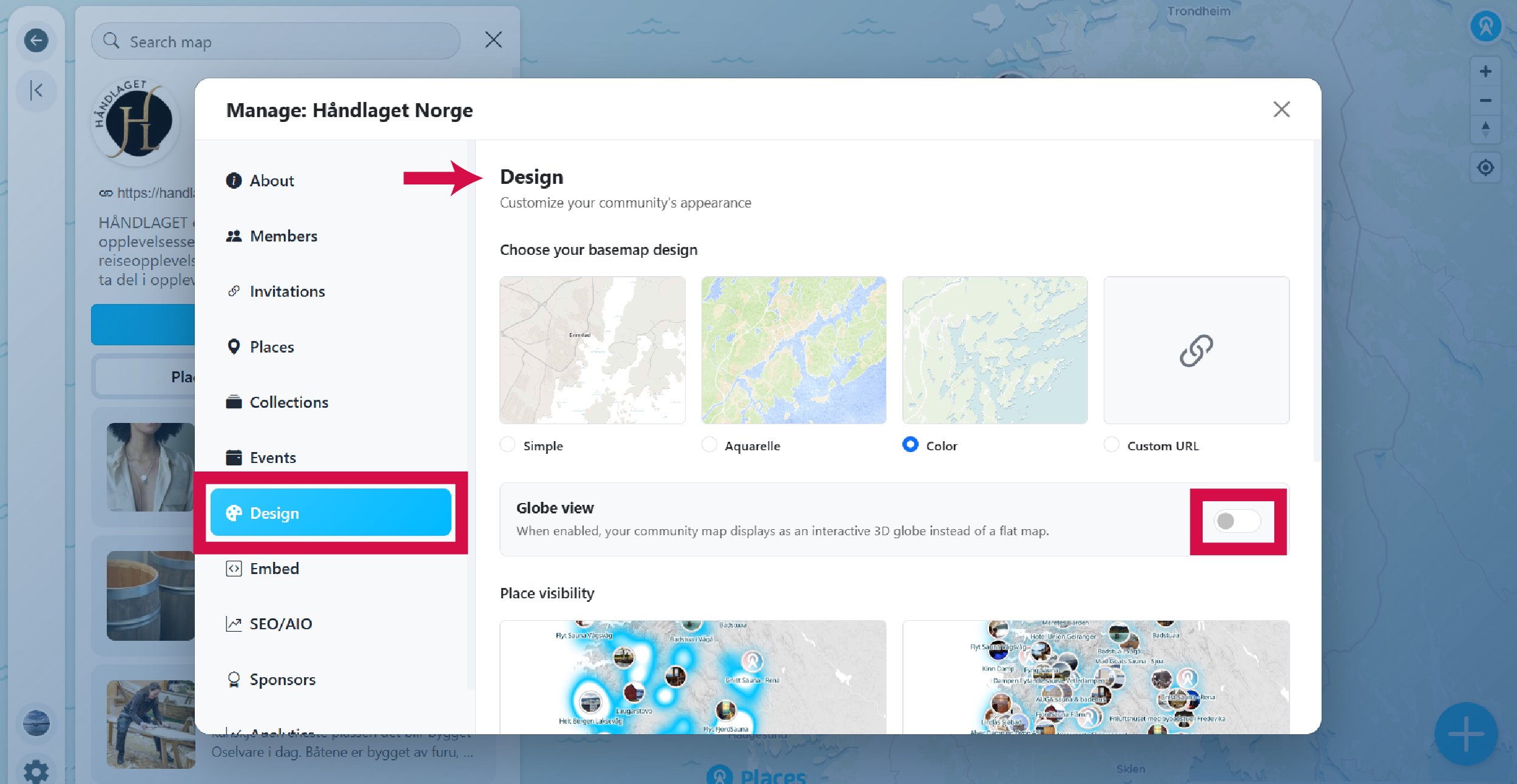
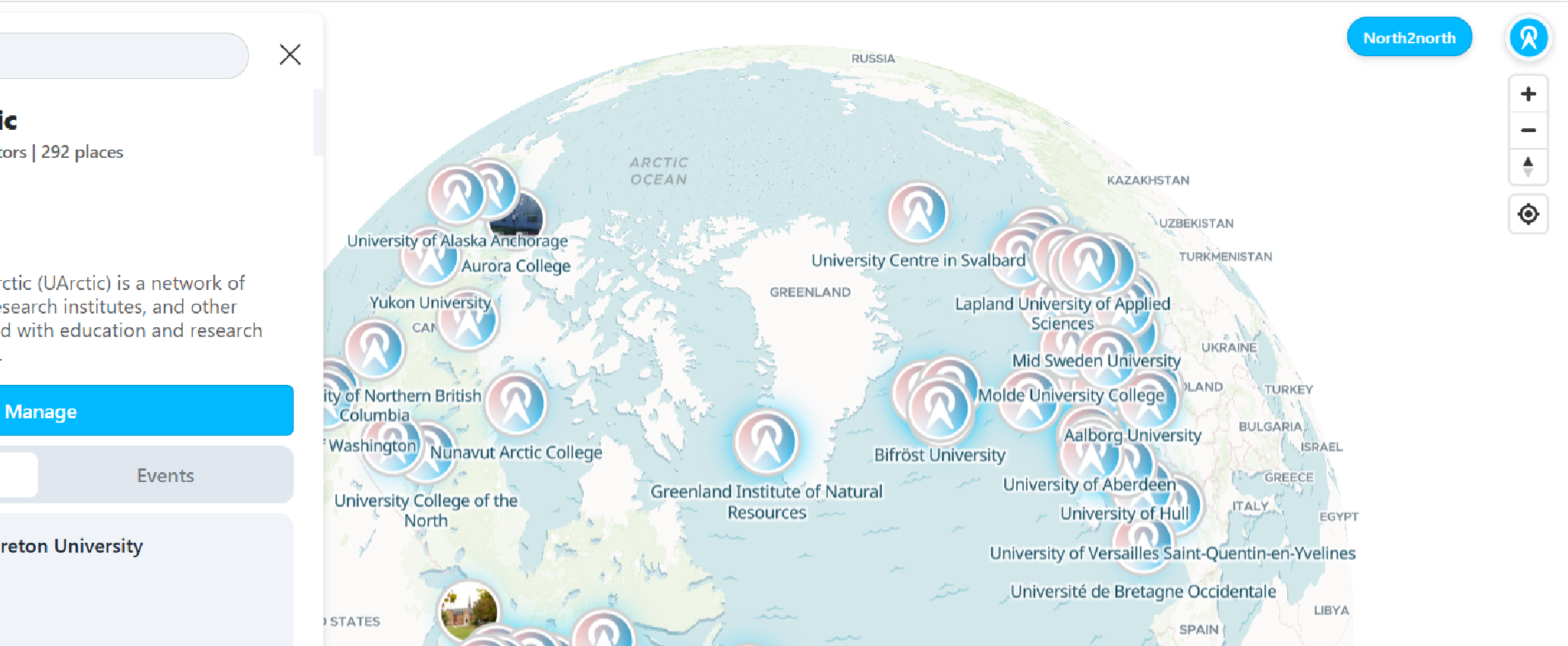
Globe view
When enabled, your community map displays as an interactive 3D globe instead of a flat map. This works particularly well for global maps, especially those with a focus on the Arctic region.
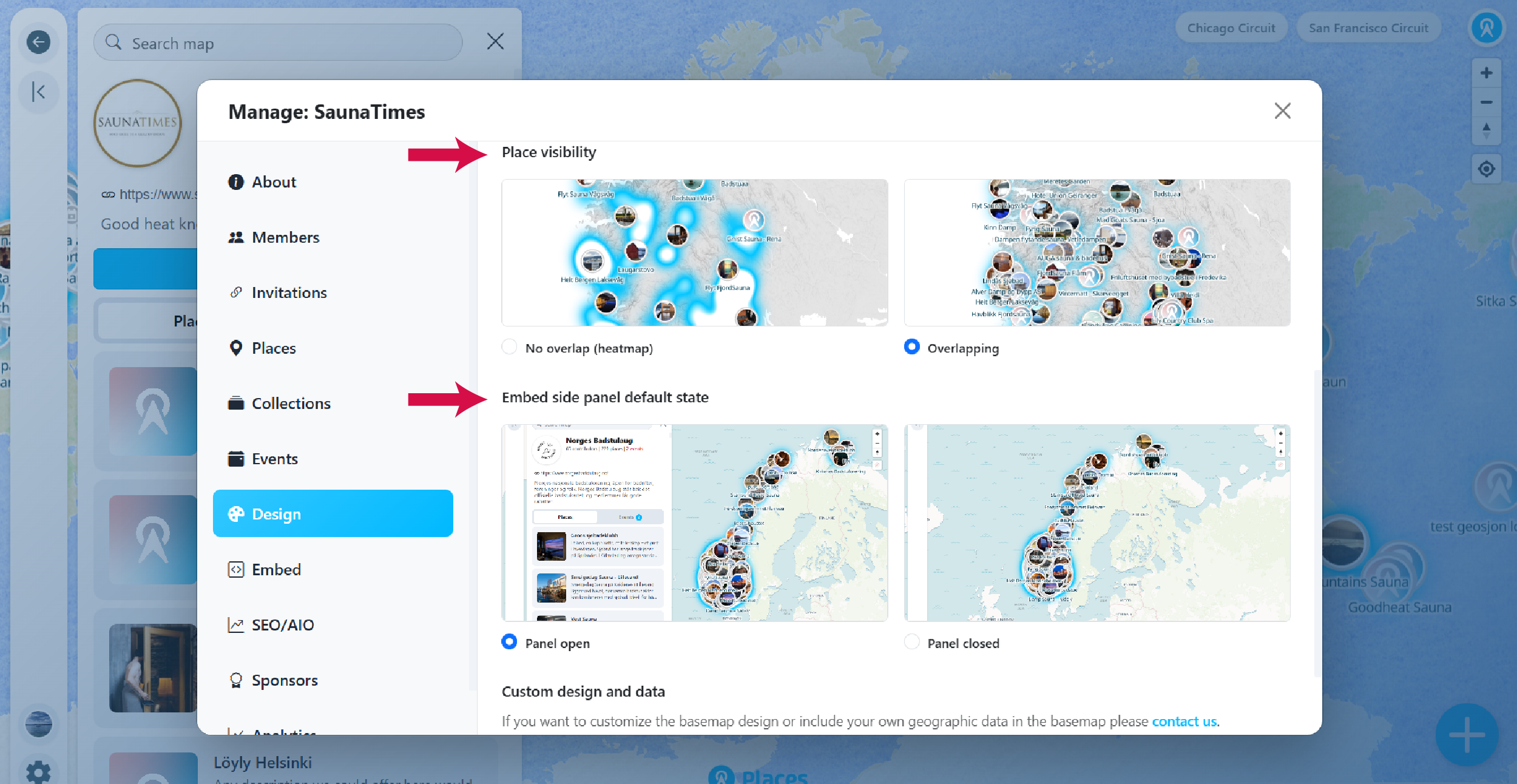
Place visibility
Control how overlapping places are displayed on your map:
- No overlap (heatmap): Overlapping places are hidden and displayed as a heatmap instead, until the user zooms in enough to show them individually.
- Overlapping: All place markers are shown, even if they overlap each other.
Embed side panel default state
Customize how your map appears when embedded on other websites:
- Panel open: The side panel with community information and the list of places is visible by default.
- Panel closed: Only the map is shown initially. Visitors can open the panel manually.
-
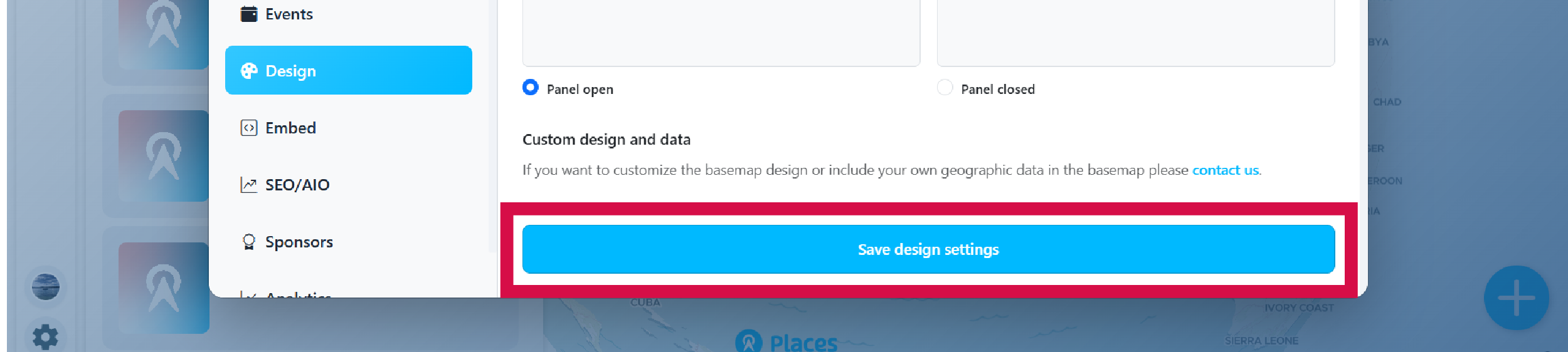
Save your design settings
Remember to click Save design settings for your changes to take effect. Your community map will update immediately after saving.
-
Custom design and data
If you want to include custom data on your basemap—such as custom routes, boundaries, 3D terrain, ski tracks, or other geographic features—we can easily accommodate that. Just contact us to discuss your requirements.