Events are time-limited activities happening at your places. They appear in your community's event calendar and on the map, helping visitors discover what's happening.
-
Go to your community map
You need to be the owner, a moderator, or an editor of the community to add events.
-
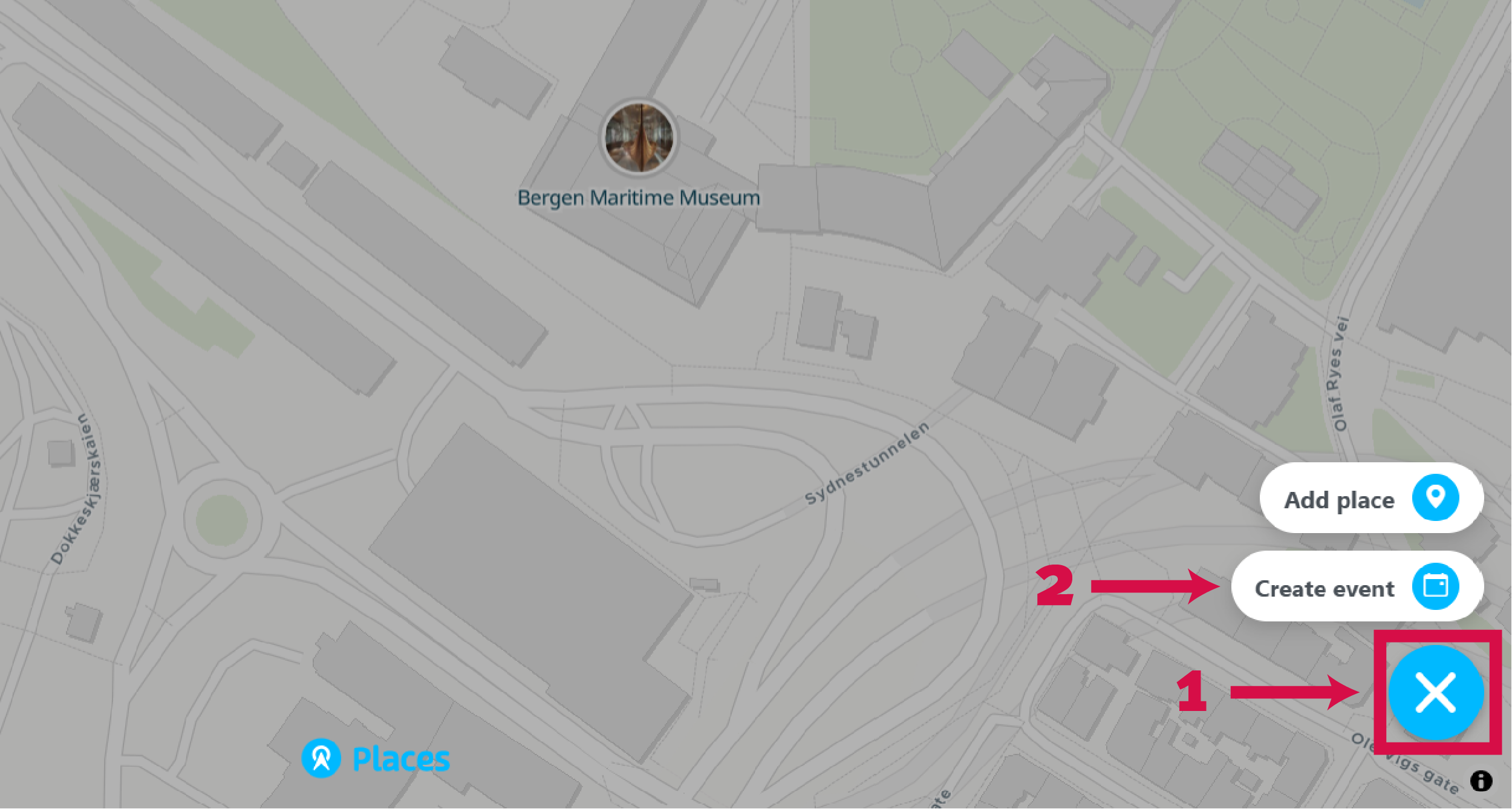
Click the + button and select Create Event
Located in the bottom right corner of the map. Only visible to owners, moderators, or editors.
-
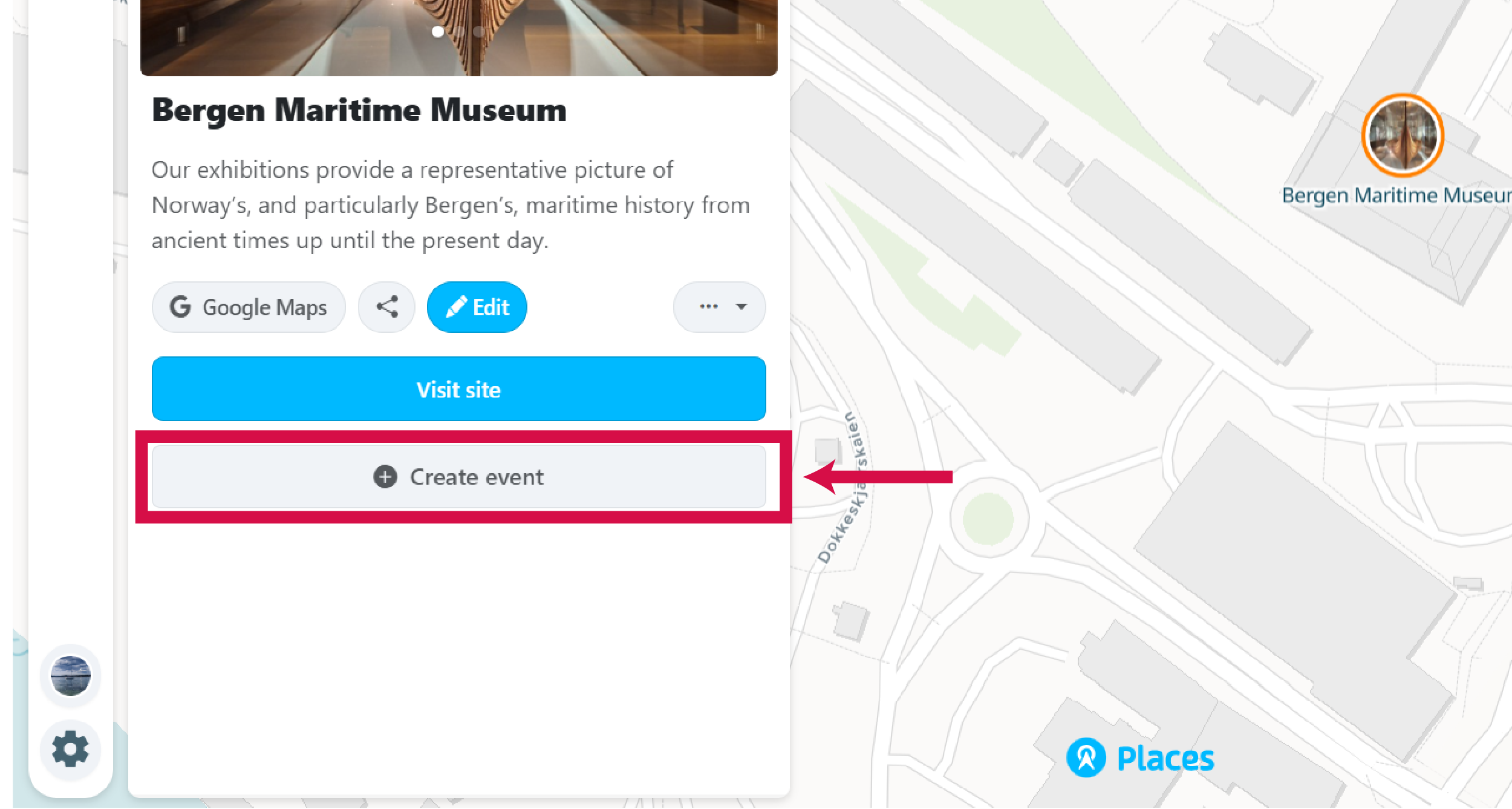
Alternatively, create event from a place
Click on the place where the event will happen, then click the Create Event button in the place panel.
-
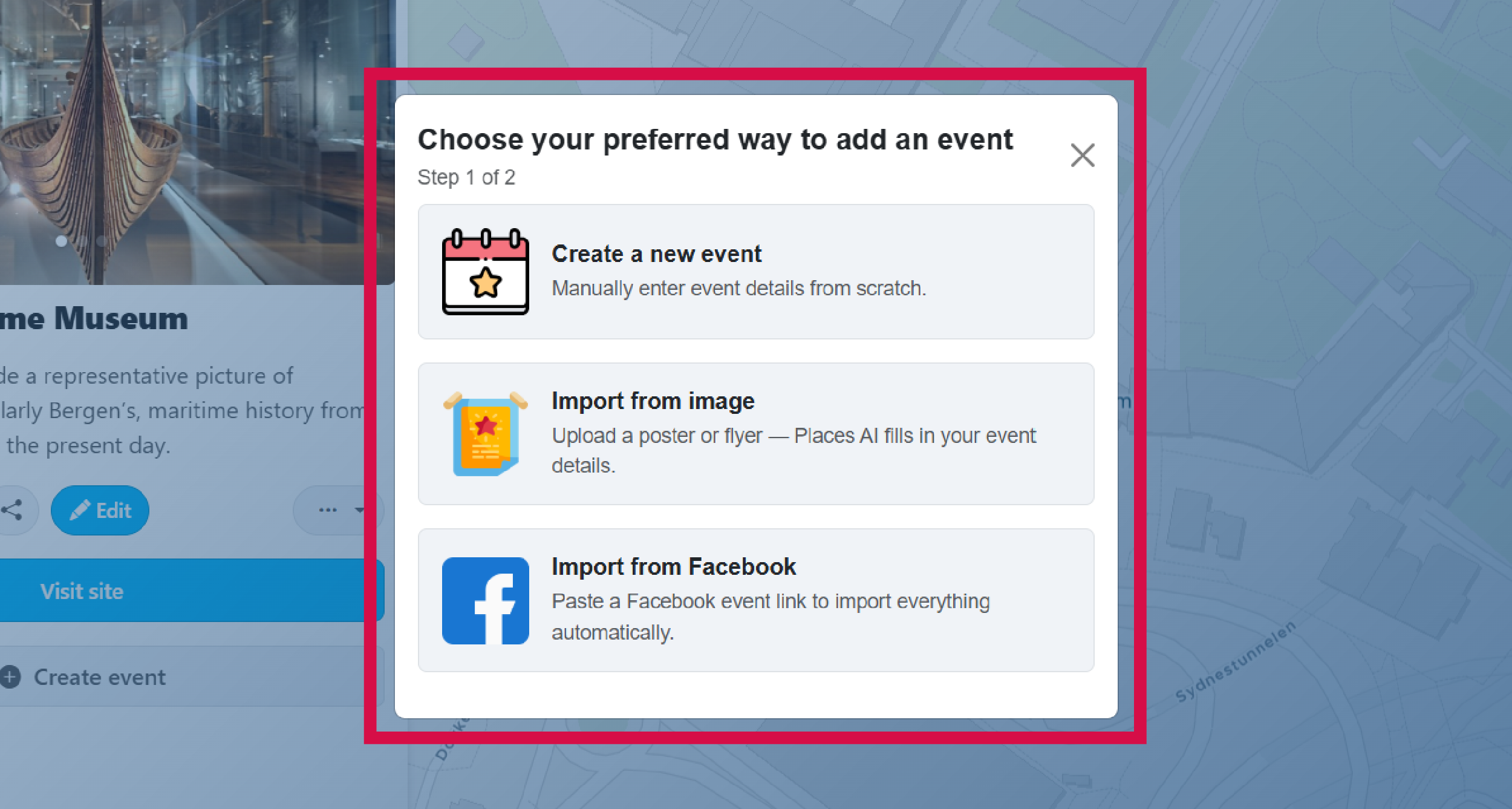
Choose how to add the event
Add event details manually, import from Facebook, or let AI extract information from an event image.
-
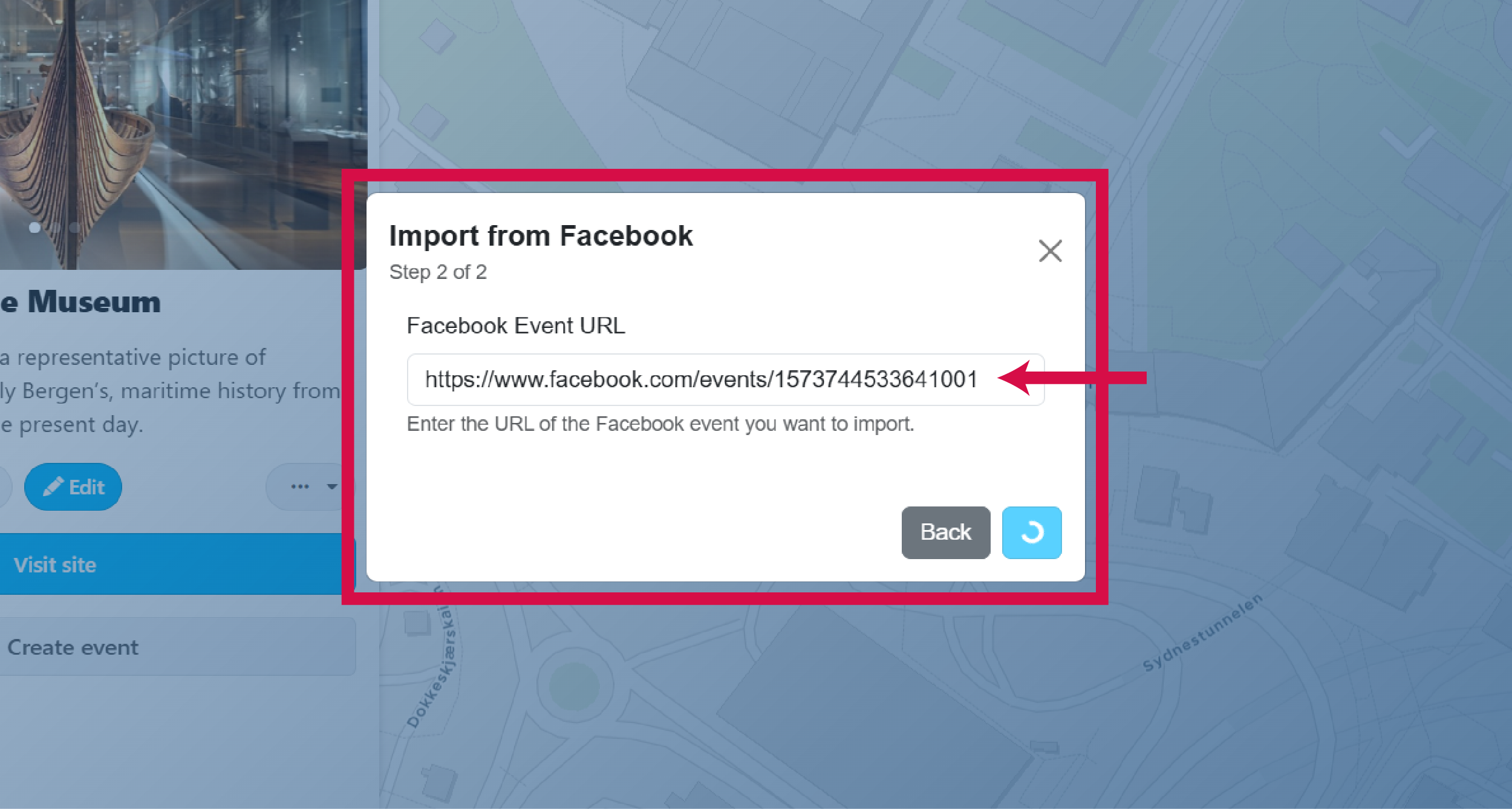
Import from Facebook (optional)
Paste the Facebook event URL. All information including images, date, time, description, title, and ticket links will be fetched automatically.
-
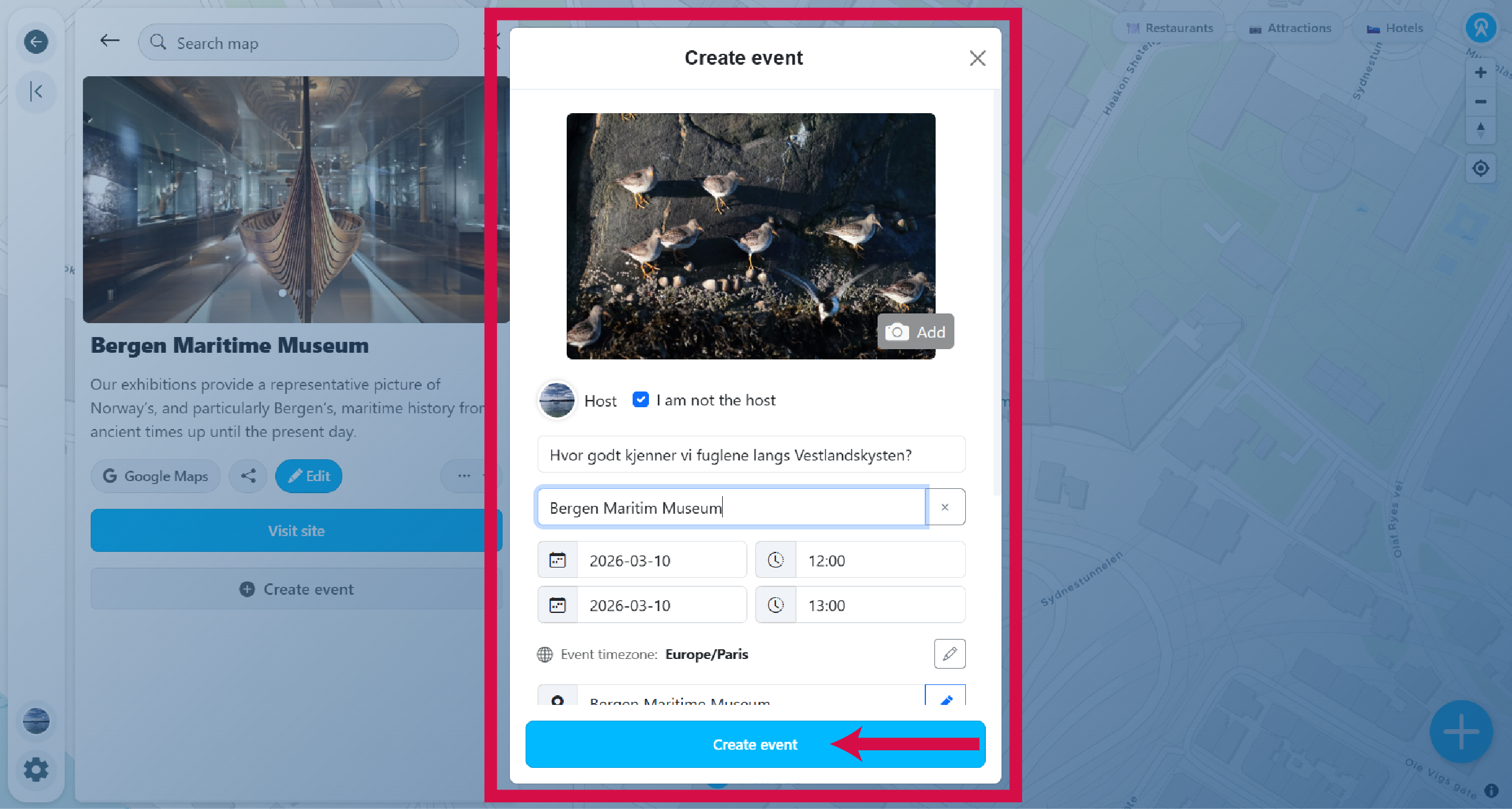
Fill in the event details
Check that all information is correct. You can always edit later. If you're not the organizer, uncheck yourself as host and enter the organizer's name. Click Create Event.
-
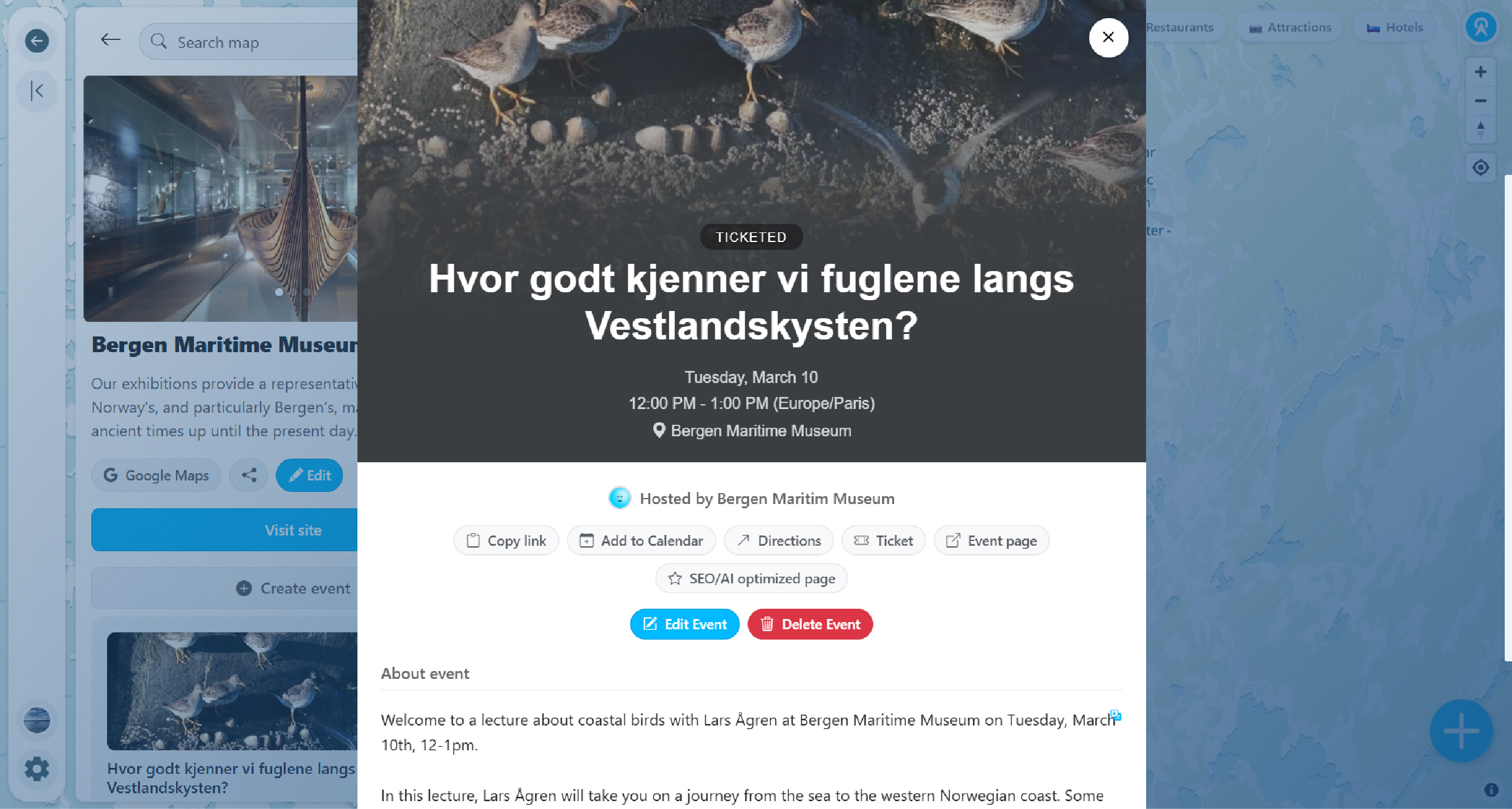
View your event page
Your event page shows all the information. Each event gets a unique URL that can be shared with others.
-
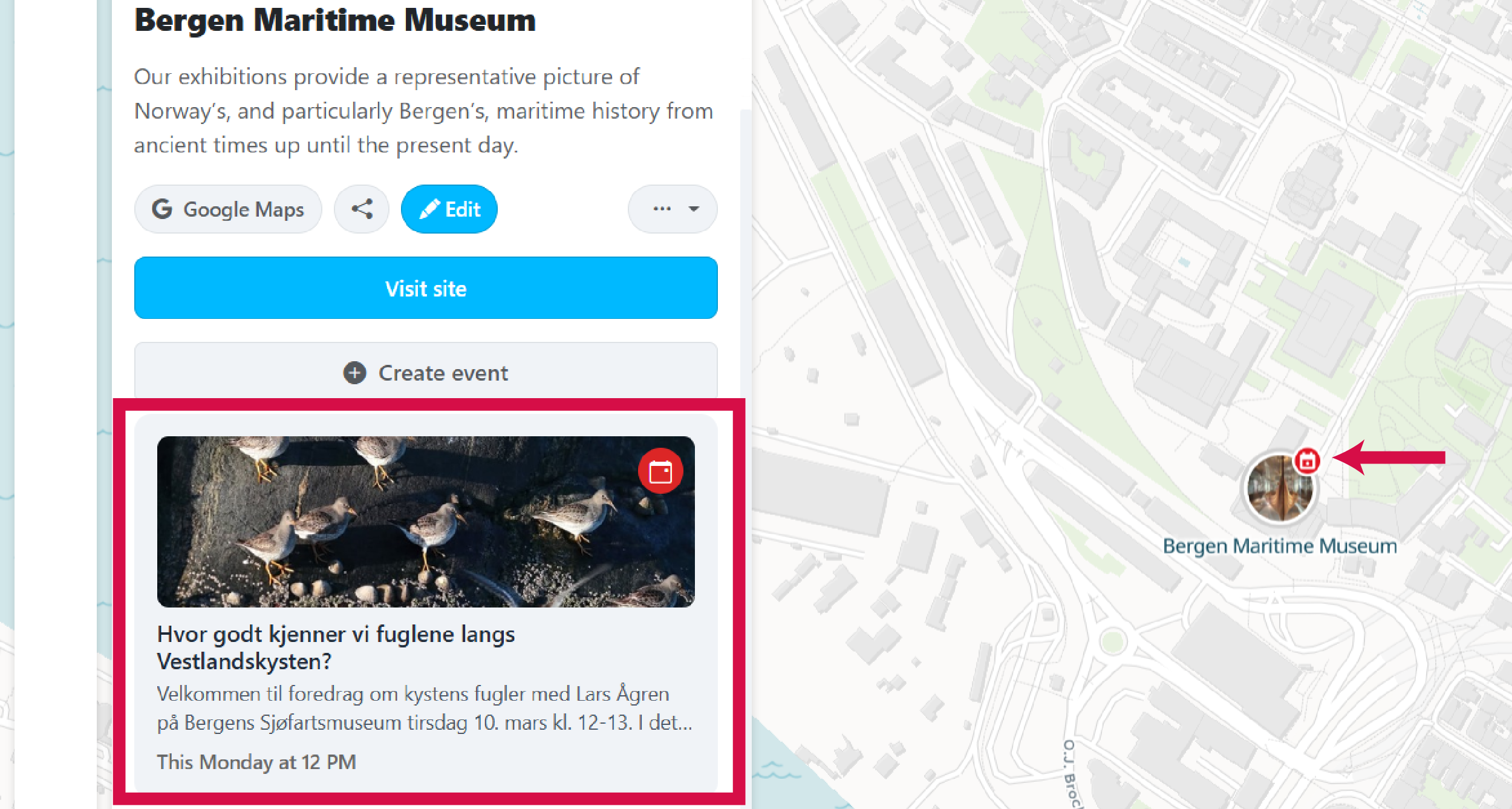
Events appear across your community
Your event will show as a card in the events list, under the place/venue information, and as a small icon at the event location on the map.