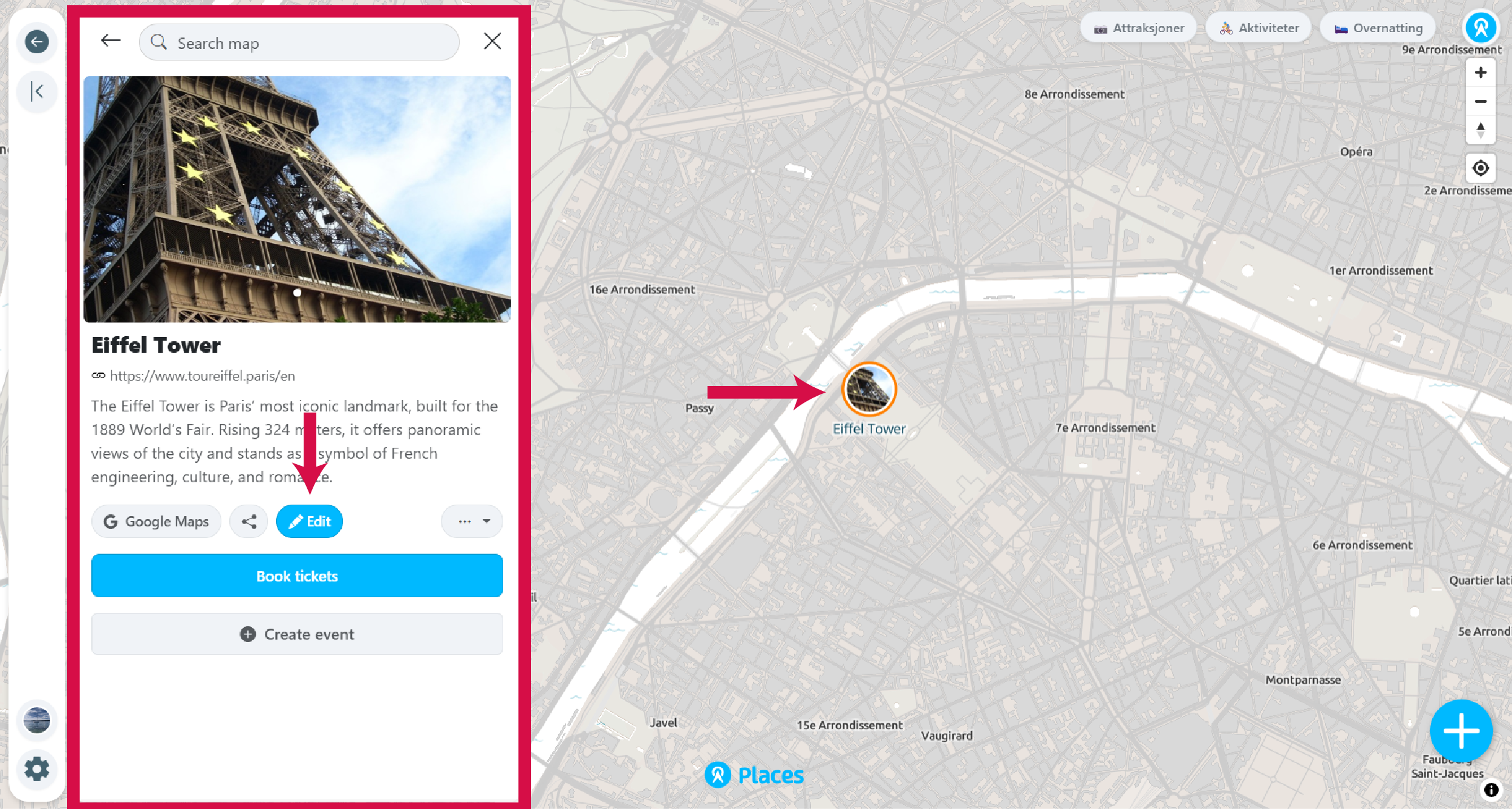
Places are the building blocks of your community map. Each place has a location on the map, a name, description, and optional photos (up to 3) and custom button link. Places can be shared between multiple community maps.
-
Go to your community map
You need to be the owner, a moderator, or an editor of the community to add places.
-
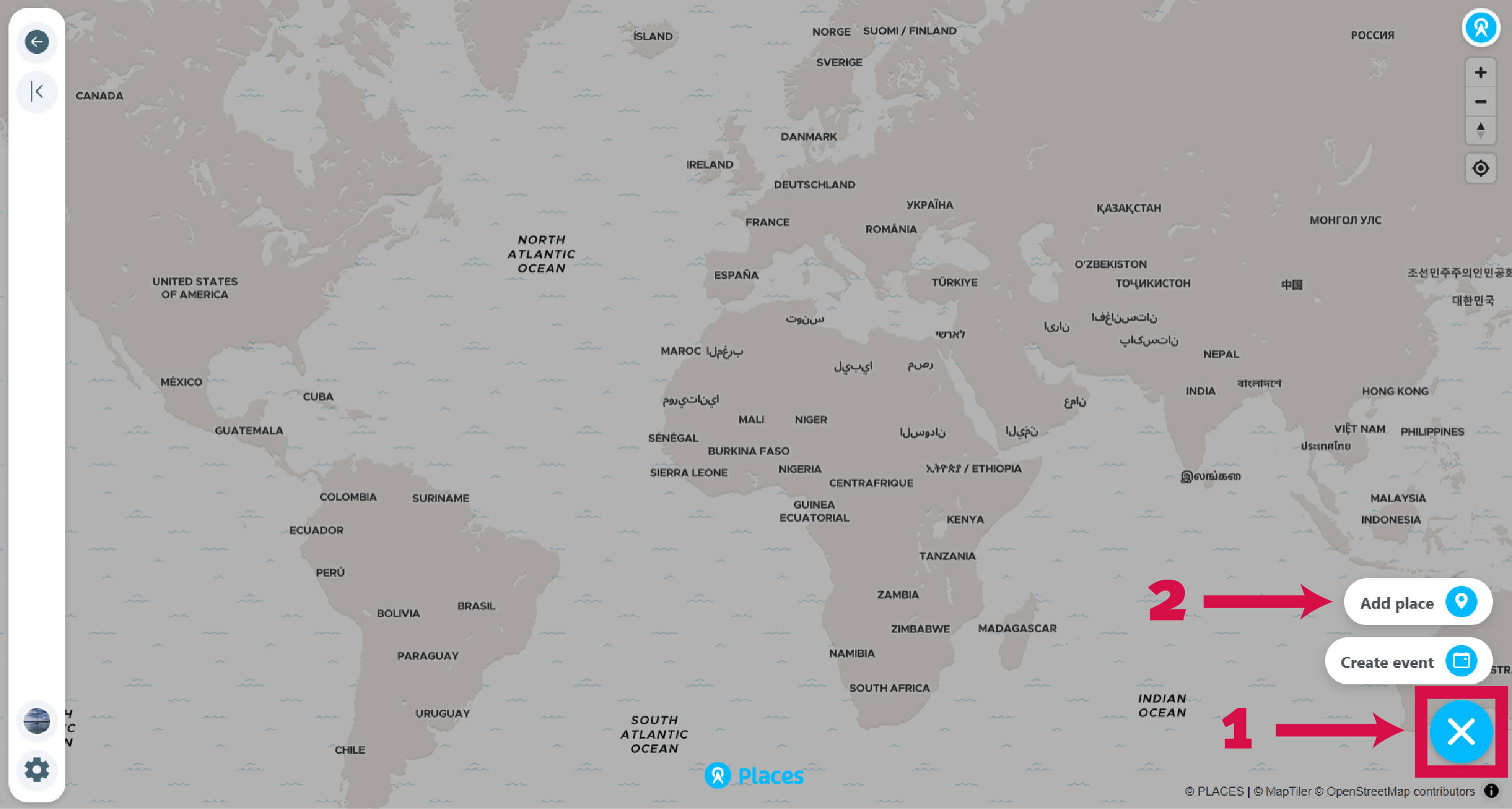
Click the + button
Located in the bottom right corner of the map. Only visible to owners, moderators, or editors.
-
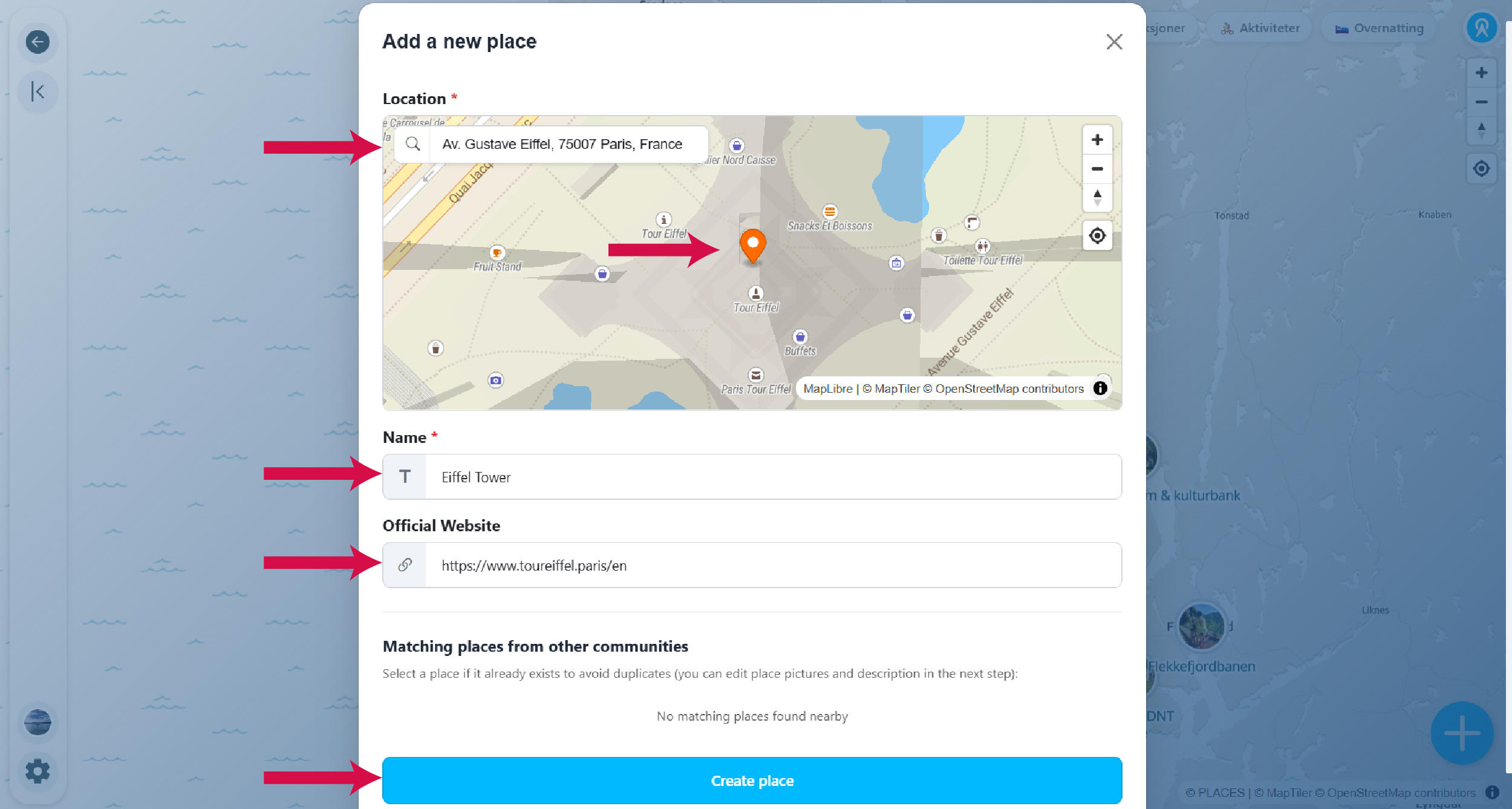
Set location and create place
A panel opens to add your place. Use the address search to find a location, or click on the map to drop a pin. Enter a place name (required) and website (optional). Click Create Place. You can edit these details later.
-
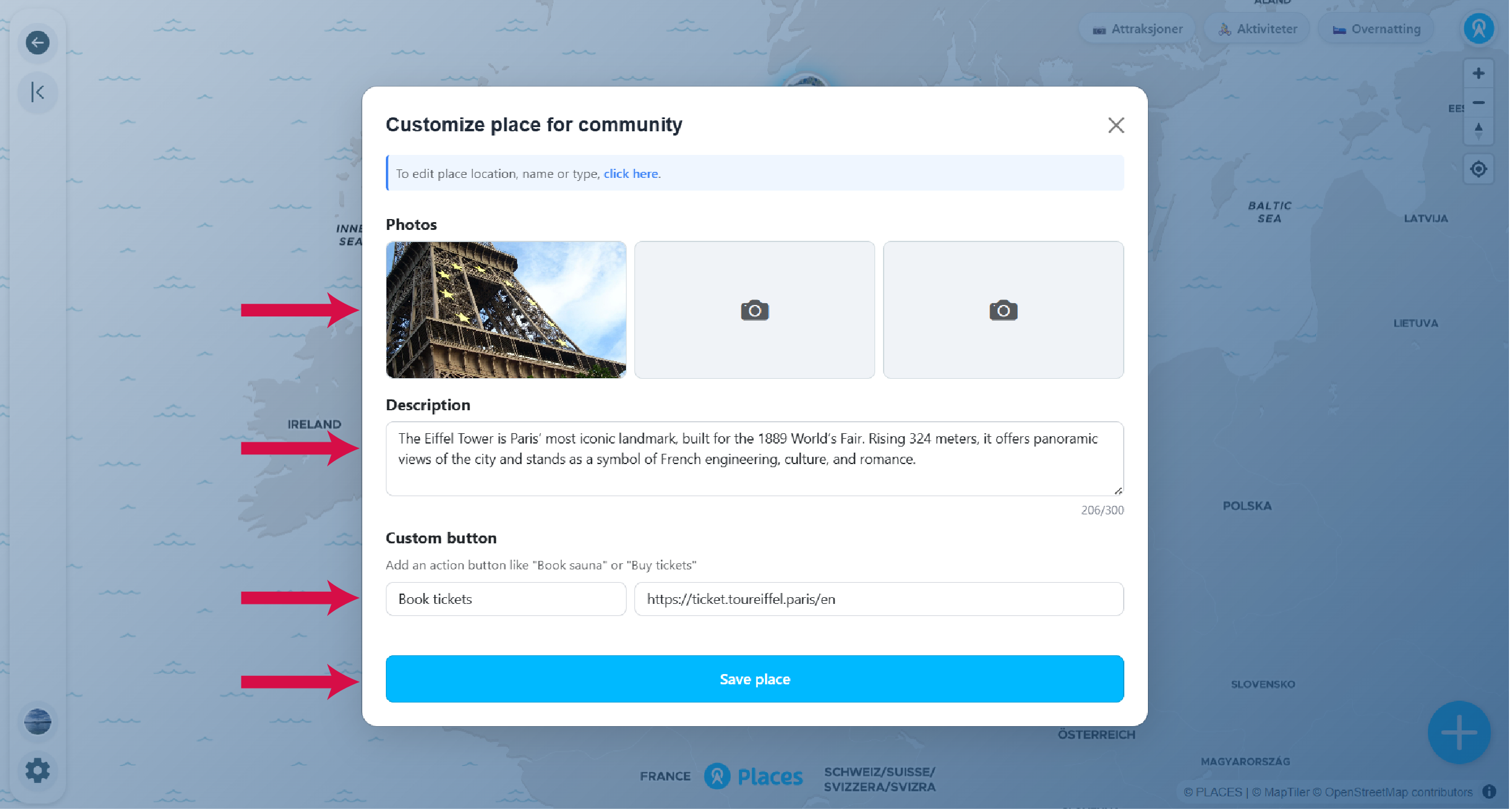
Add more details (optional)
A new panel opens for additional information. Add up to 3 photos by clicking the placeholder to upload. Add a description (up to 300 characters). Add a custom button link like "Buy Tickets" with your own URL. Click Save Place.
-
View and edit your place
Click the place on the map to see its details panel. Use the edit button to make changes.